Downloaded the Judgment Documents Dataset but Excel Can't Open It? | Sharing a Convenient Method to Create a Local Database
Offers a practical solution for legal professionals struggling with China's 95GB judgment document dataset by building a local SQLite database via a custom Python GUI tool, bypassing Excel's 2GB file size limit for CSV files.
Recently, rumors that “China Judgments Online will shut down” have been spreading, and many legal professionals worry they won’t be able to find judgments for legal research anymore.
Suddenly, a nearly 95GB judgment document dataset started circulating online, covering most publicly available judgments from 1985 to 2021.
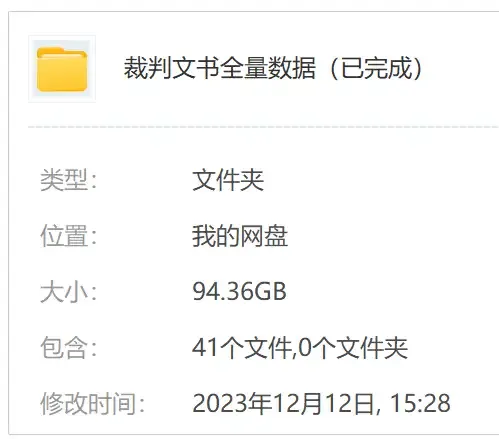
For a time, legal professionals were opening their Baidu Cloud drives and entering “feverish download mode.”
But after downloading, faced with a pile of CSV files, many had no idea where to start.
This format looks like Excel can open it,
But why can some be opened while others show nothing?
How exactly do you use this?
【Software download links mentioned in this article are at the end】
*This article represents the author’s personal opinions and should not be considered as legal advice or opinions.
I. How to Open Ultra-Large CSV Files with Excel
A CSV file is a common text file format whose full name is “Comma-Separated Values.” It is a simple text file format for storing tabular data, where each row represents a record in the table and each field (column) is separated by a comma or other delimiter.
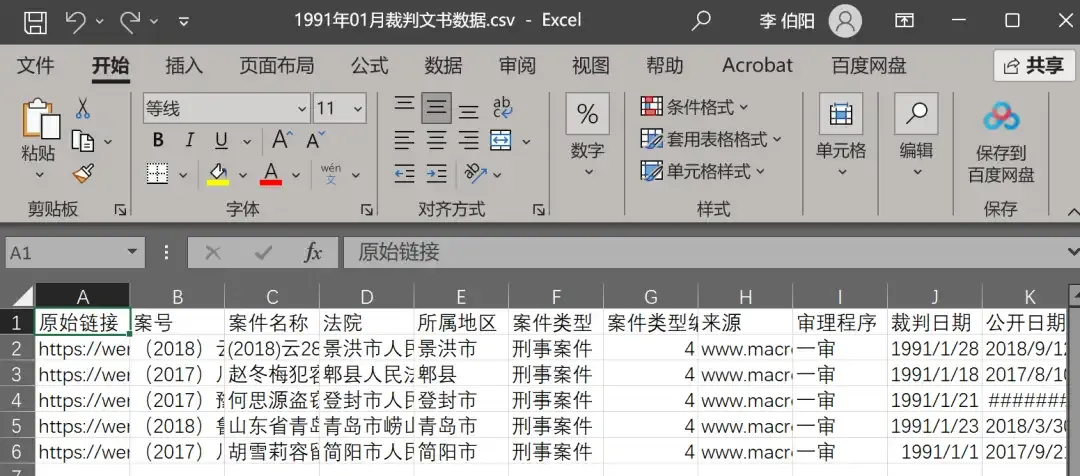
Excel can directly open some smaller CSV files. After opening, we can see that CSV files look no different from regular Excel files.
But when we open a very large CSV file from the dataset (for example, the June 2020 dataset reached 11GB), we find that Excel displays nothing.
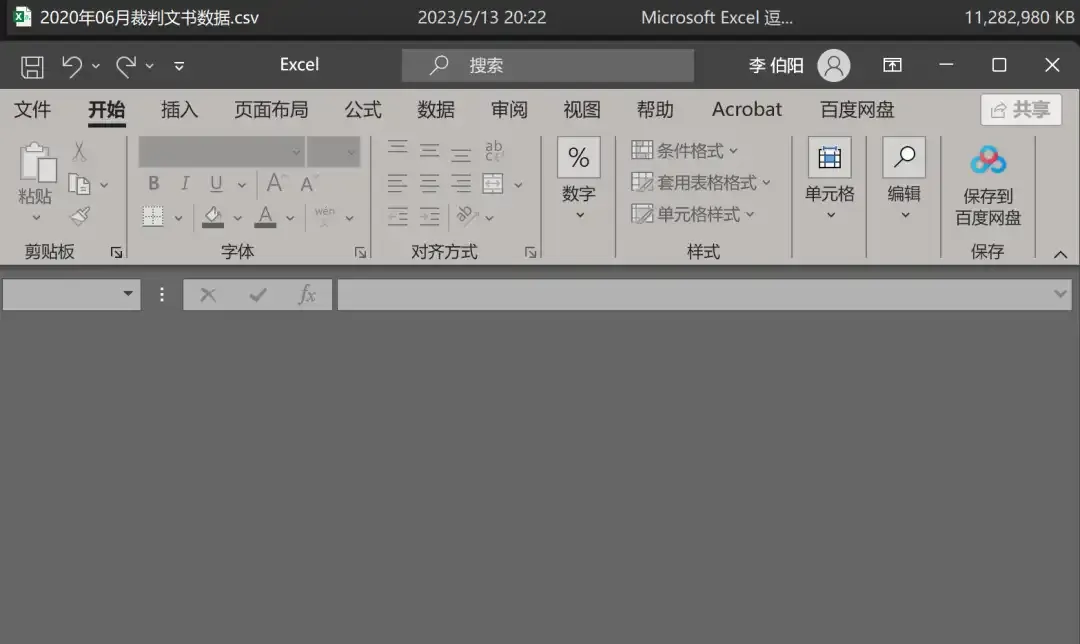
The reason is that the number of entries far exceeds Excel’s upper limit.
Excel’s maximum CSV file size limit is about 2GB. Faced with a behemoth exceeding 2GB,
Excel simply chose to go on strike.
However, Microsoft has provided a way to open ultra-large CSV files:
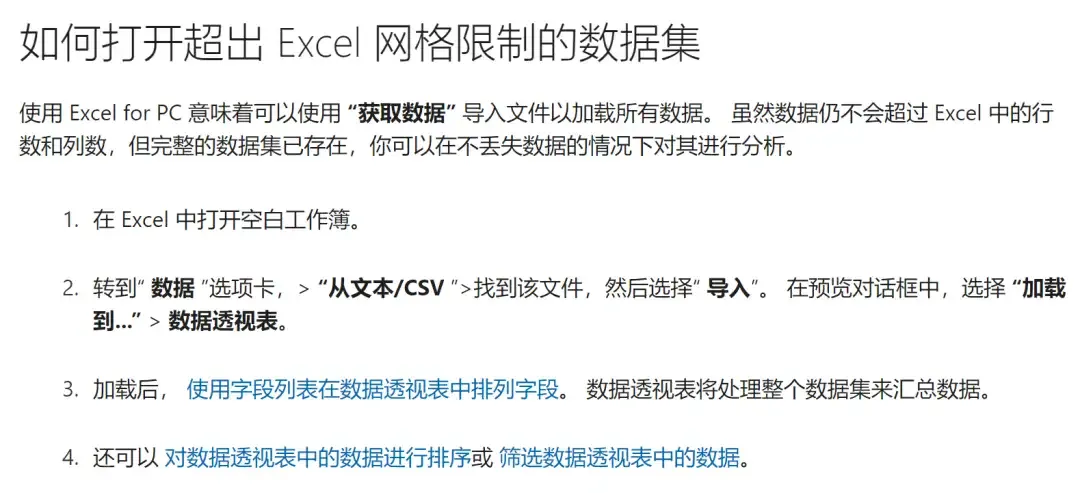
It’s roughly located here:
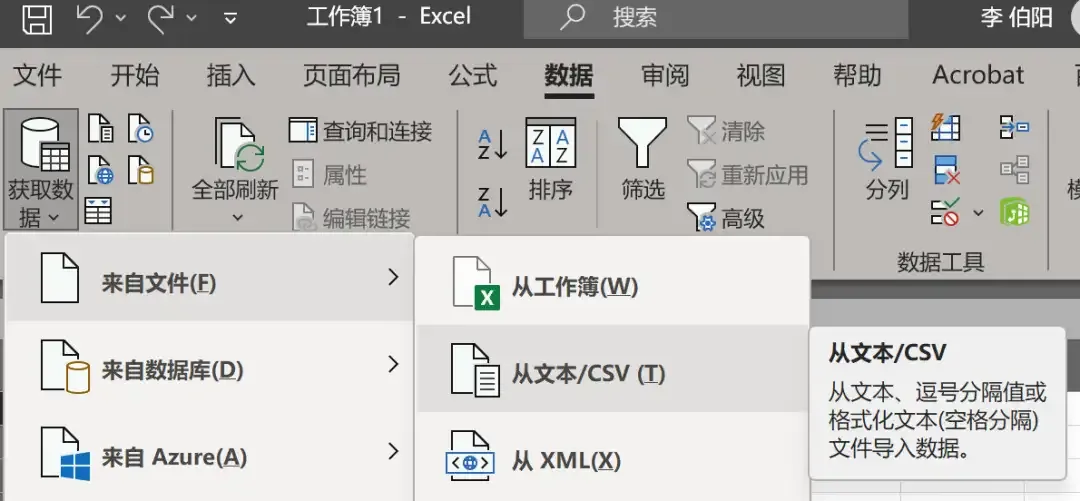
Selecting a dataset file over 3GB can indeed open it successfully.
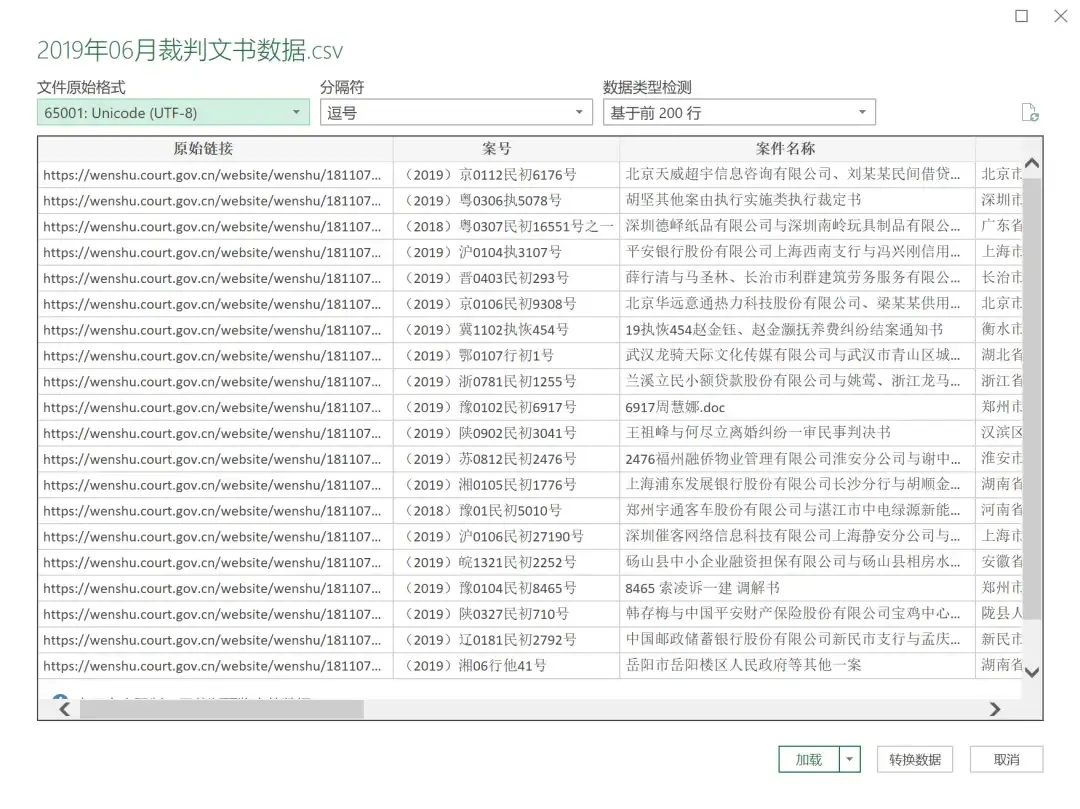
After clicking the [Load] button, click on [Document Data] on the right side of the interface to enter a Power Query Editor interface.

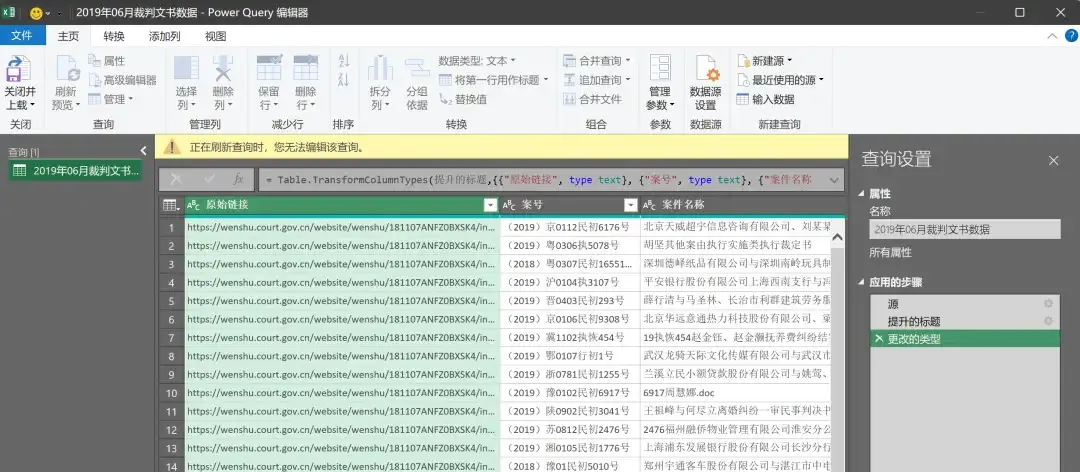
Data queries are not possible during loading.
If you click around the interface a few more times, you might encounter the familiar “Not Responding” .
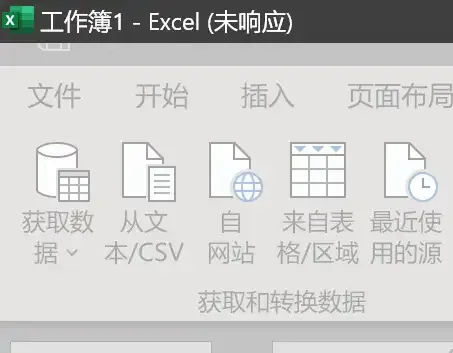
Even if it opens normally, the interface is not very “intuitive” and requires more learning to use.
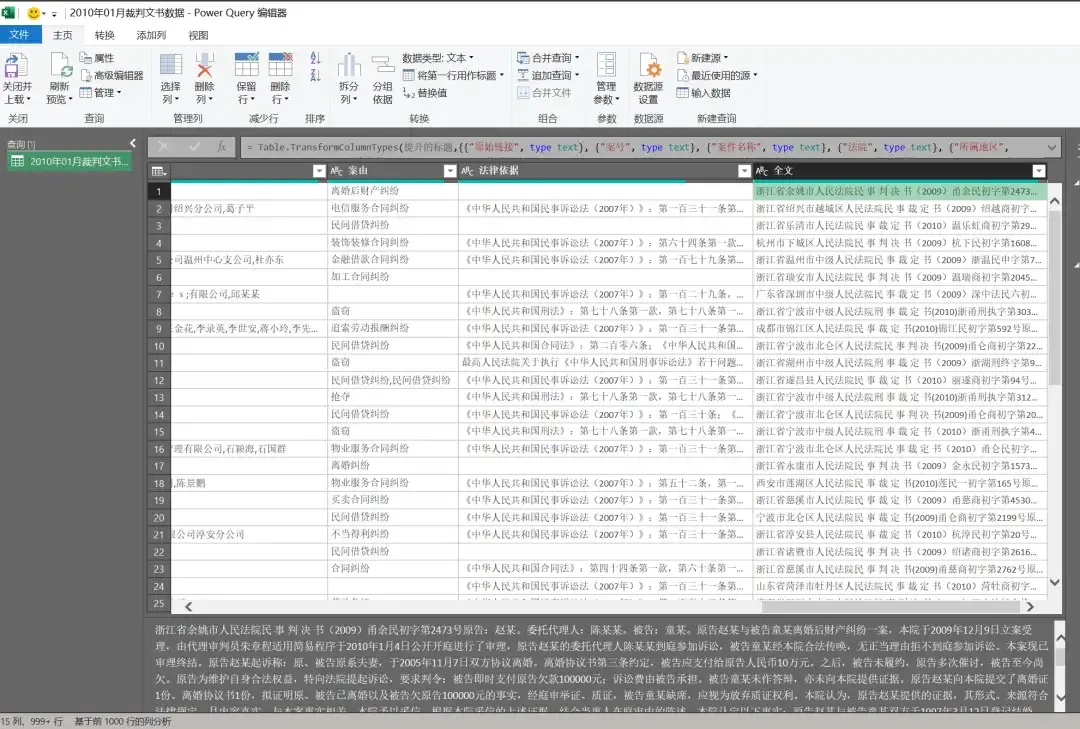
Since I don’t use Excel to manage ultra-large CSV files, patient readers can refer to Microsoft’s official tutorial on how to use it:
https://learn.microsoft.com/en-us/power-query/
II. In the Age of Big Data, I Choose Code
Another way to manage CSV files is to import them into a database file and then use database tools to manage, query, and export data.
In the age of big data, the most popular programming language is Python.
So I wrote a simple script in Python
To import all CSV files into a database.
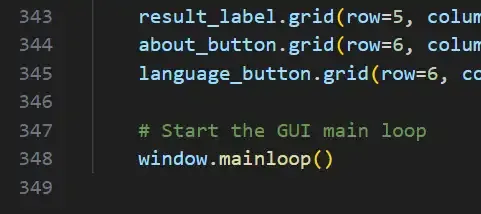
Although many paid SQL database software have CSV import functionality,
One, it costs money, and two, cracked versions are not compliant.
Making your own is more cost-effective.
For ease of use, I also made a simple GUI.
I have to complain: creating the interface took about as much time as creating the functionality.
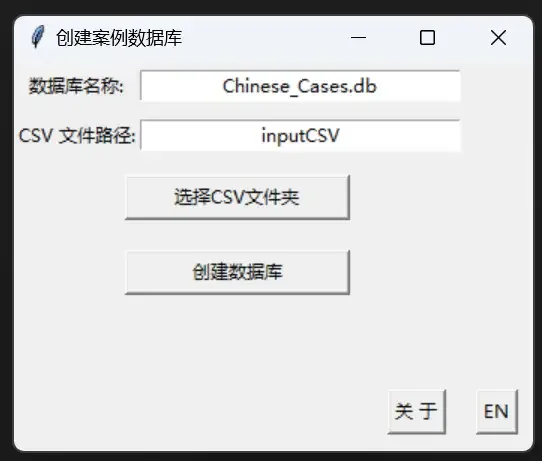
This small program’s only function is to batch import CSV files into a specified database. The imported CSV data will be stored in a Chinese_Cases.db database file in the same directory, with basic indexes created.
The program by default reads all CSV files in the “inputCSV” folder in the same directory. It also supports manually entering a path or clicking the [Select CSV Folder] button to choose another directory through a pop-up window.
After selecting a CSV file directory, the program recursively traverses all subdirectories within that directory, reading the CSV files.
Therefore, if you only want to import CSV files from a specific directory, you need to select the exact subfolder (e.g., the “2001” folder); if you select a parent directory, it will automatically import all CSV files from all subfolders.
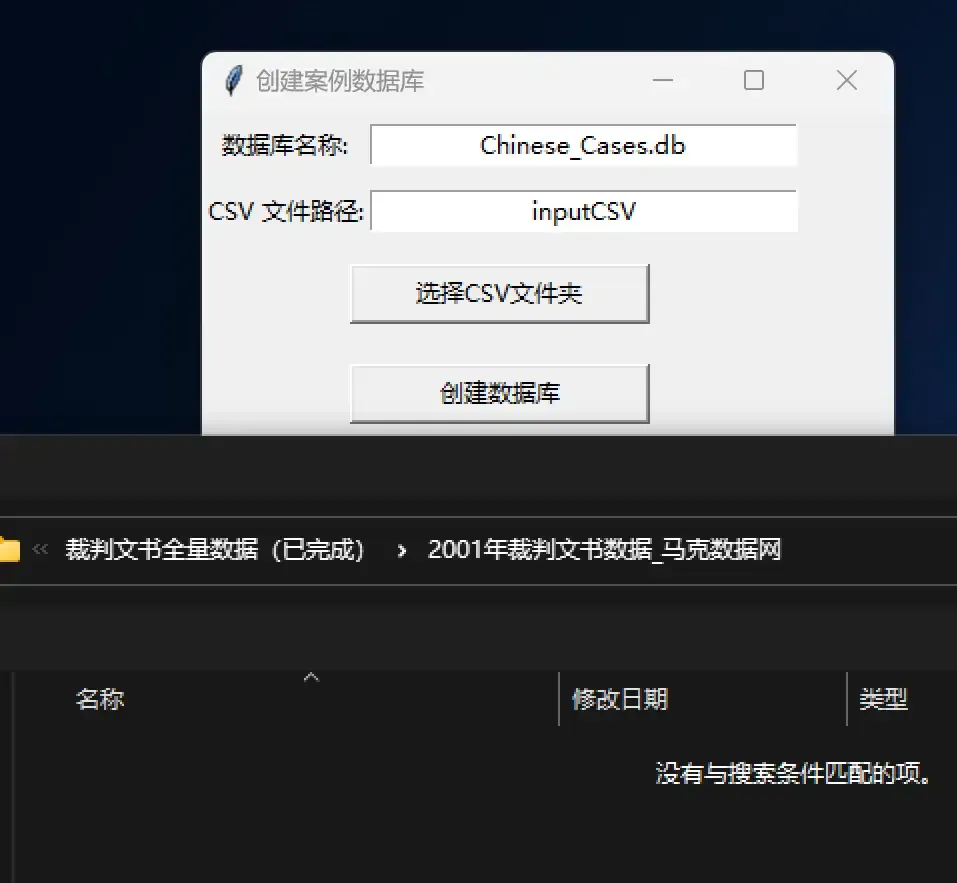
After selecting the folder, simply click [Create Database] to start the creation process.
The time required depends on the size of the files to be imported and your computer’s hardware performance.
If you import all the data, it will take a “considerable” amount of time.
At the same time, high-frequency read/write operations may cause brief program freezes.
Therefore, when creating, do not randomly drag or close the window.
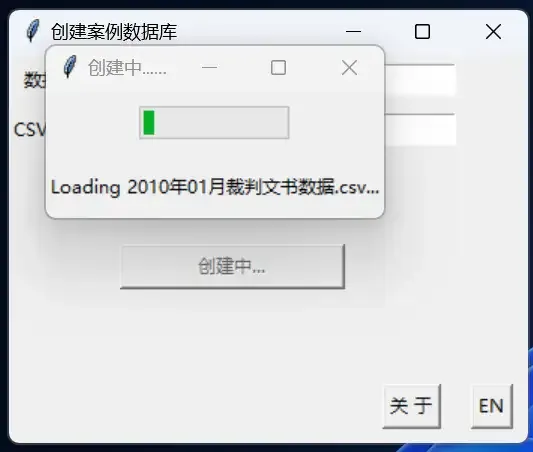
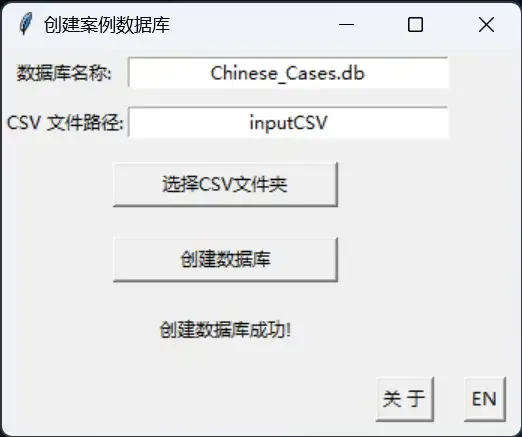
After creation is complete, the progress bar will automatically close, and the interface will show a “Creation Successful!” message. You can then close the software from the top right corner.
Open the folder where the script is located, and you’ll find that a db (database) file has been generated.

Next, you need a software to open it.
III. Using Antares SQL to Manage Database Files
There are many SQL database management tools, but many are either in English or paid. More importantly, many have “retro” interfaces with poor usability.
After searching and comparing, I decided to use Antares SQL to manage this database.
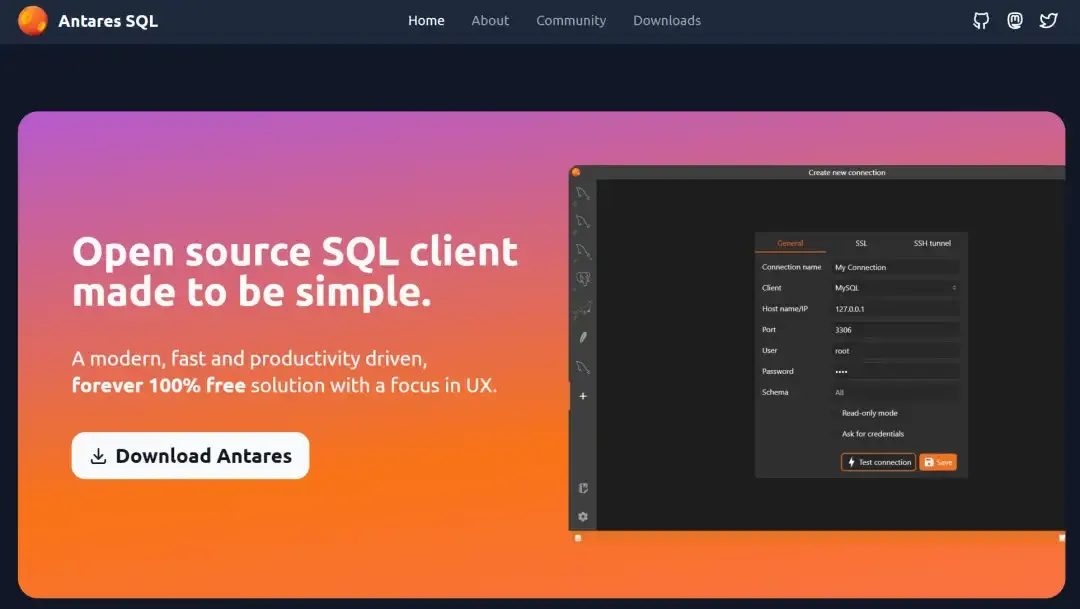
100% open source, 100% free, Chinese interface available, and a modern look.
[Not an ad; open source software truly has integrity]
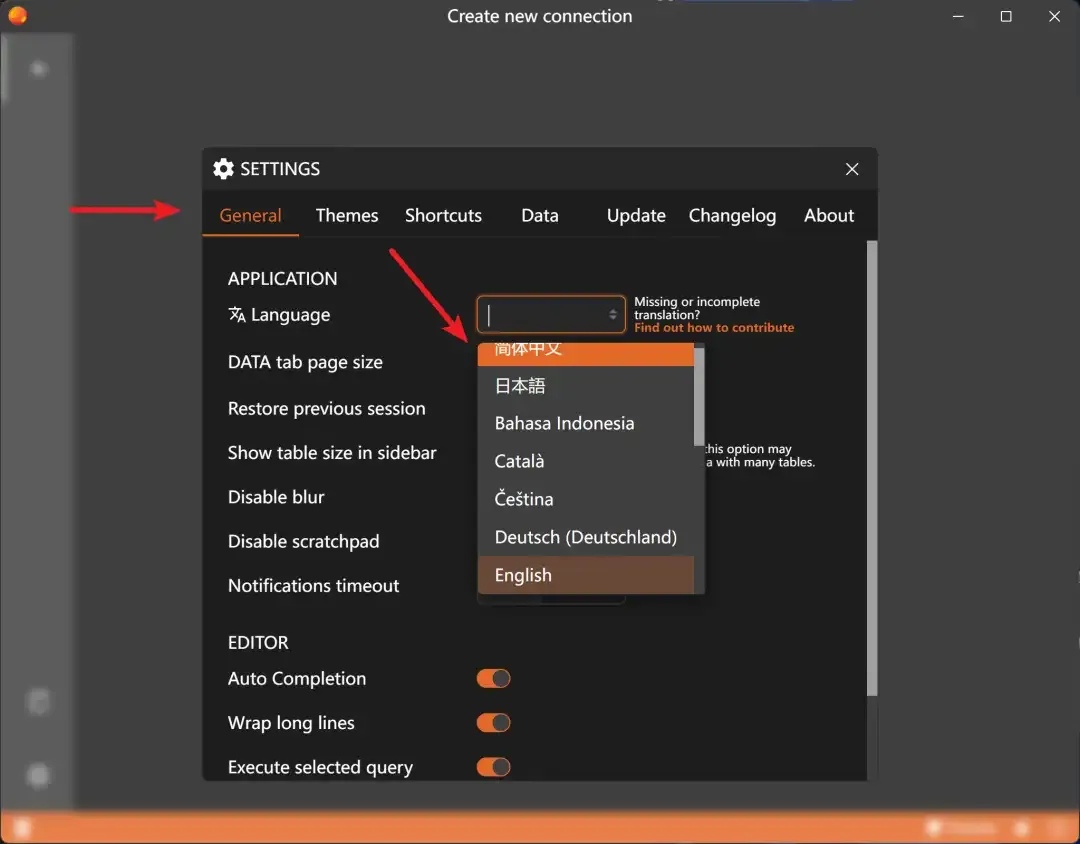
On first launch, some devices may show a JAVA error popup with nothing displayed on the interface. Don’t panic—just reopen the software and it should be resolved.
Then switch to the [General] page and change the [Language] setting to “简体中文” (Simplified Chinese).
Using this software is very simple, just three steps:
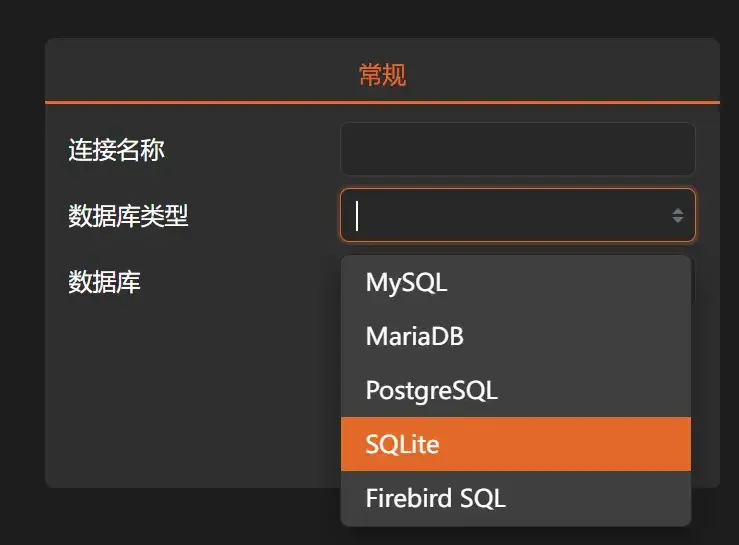
1. Select “SQLite” in [Database Type]
2. Click [Browse] to find our generated “Chinese_Cases.db”. If you’re worried about accidental operations, you can also check [Read Only Mode].
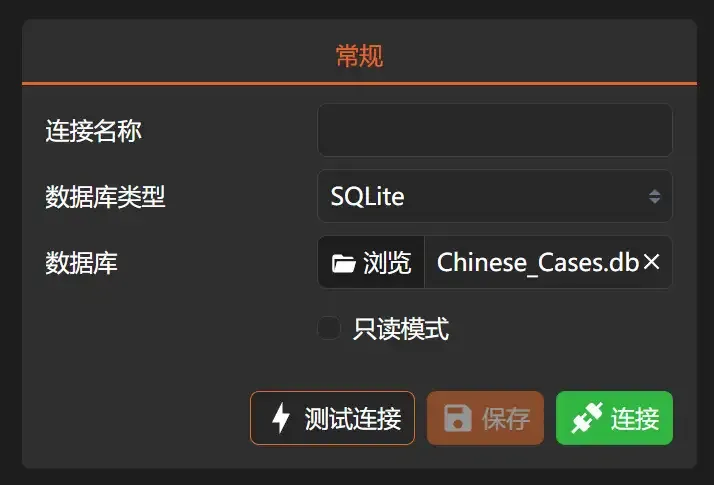
3. Then click [Connect]
Now you can browse the entire database content.
(For demonstration, I only imported data from 2010 and 2011)
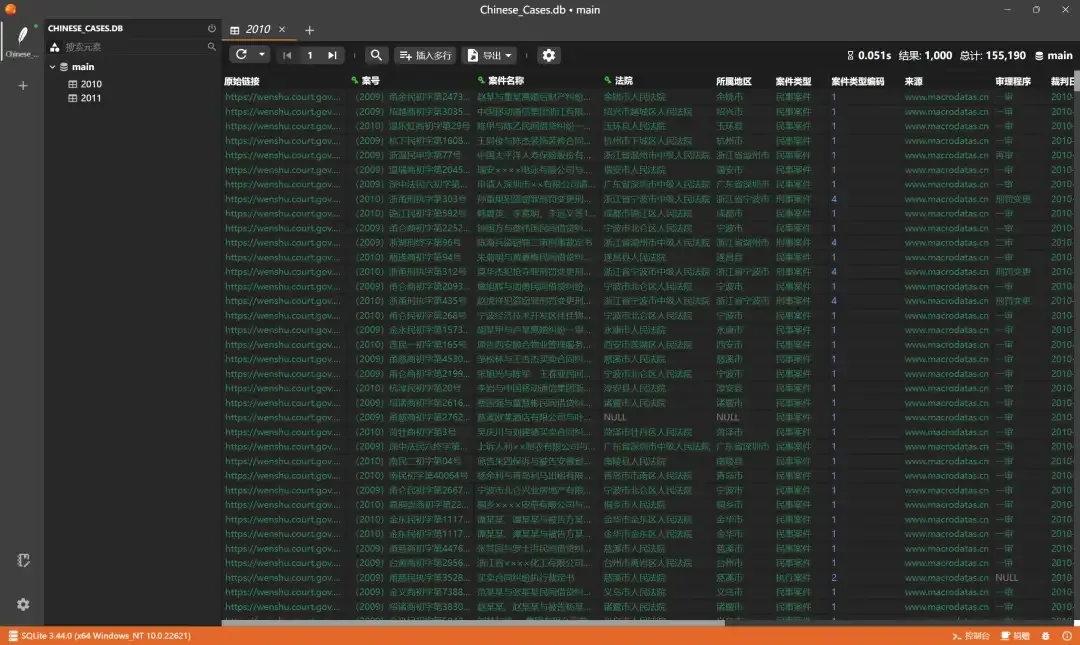
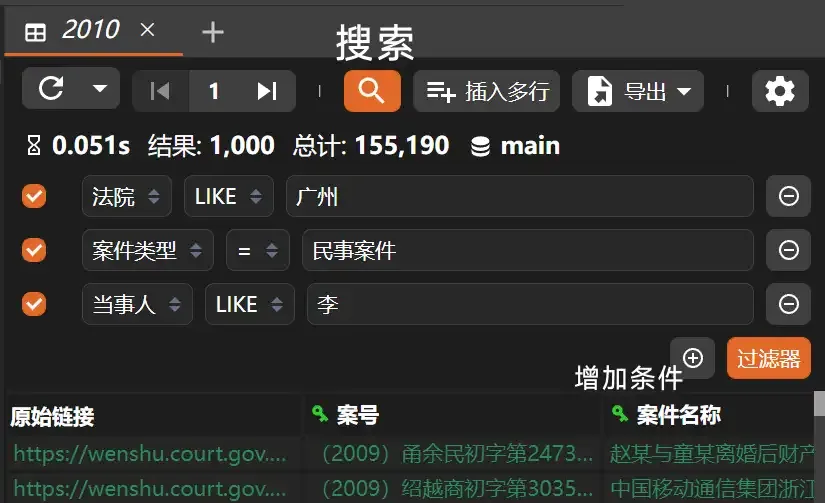
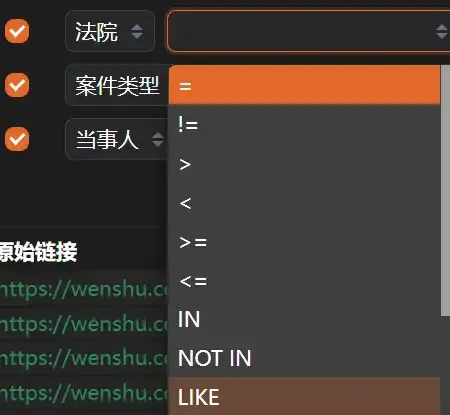
To search the data, click the [Magnifying Glass] icon, input and add conditions as needed, then click the [Filter] button.
Additional note:
There are many types of search conditions. I recommend using “LIKE” (fuzzy search) as the most convenient method.
For deterministic content, consider using ”=” (exact match) for filtering.
The total number of entries for 2010 was about 150,000.

After entering three search conditions, a total of 74 suitable results were found.
Total time: 0.438 seconds

To view the full text of a search result’s judgment, simply scroll the table to the far right and double-click the cell under the [Full Text] column.
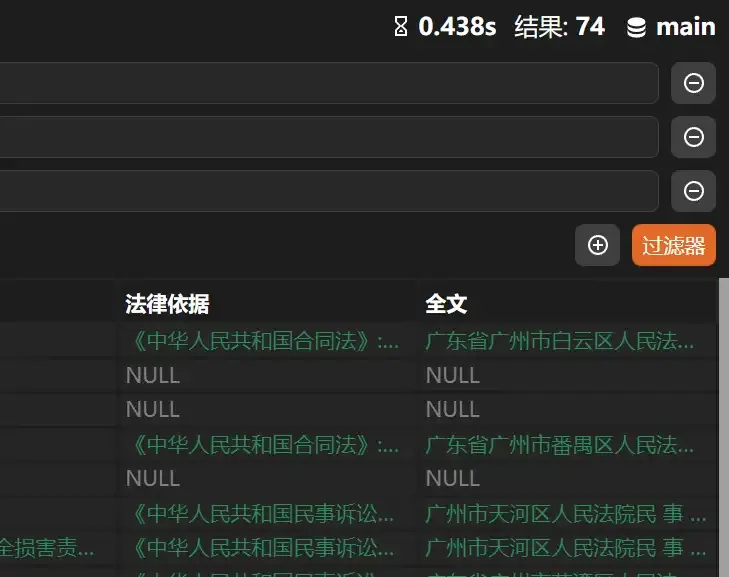
The “Full Text” content is plain text and can be freely copied.
Unfortunately, the judgment full texts in the dataset come without formatting, making direct browsing a bit cumbersome. If you need to copy them into a Word document, you’ll need to reformat them (perhaps this can be solved by a program in the future).

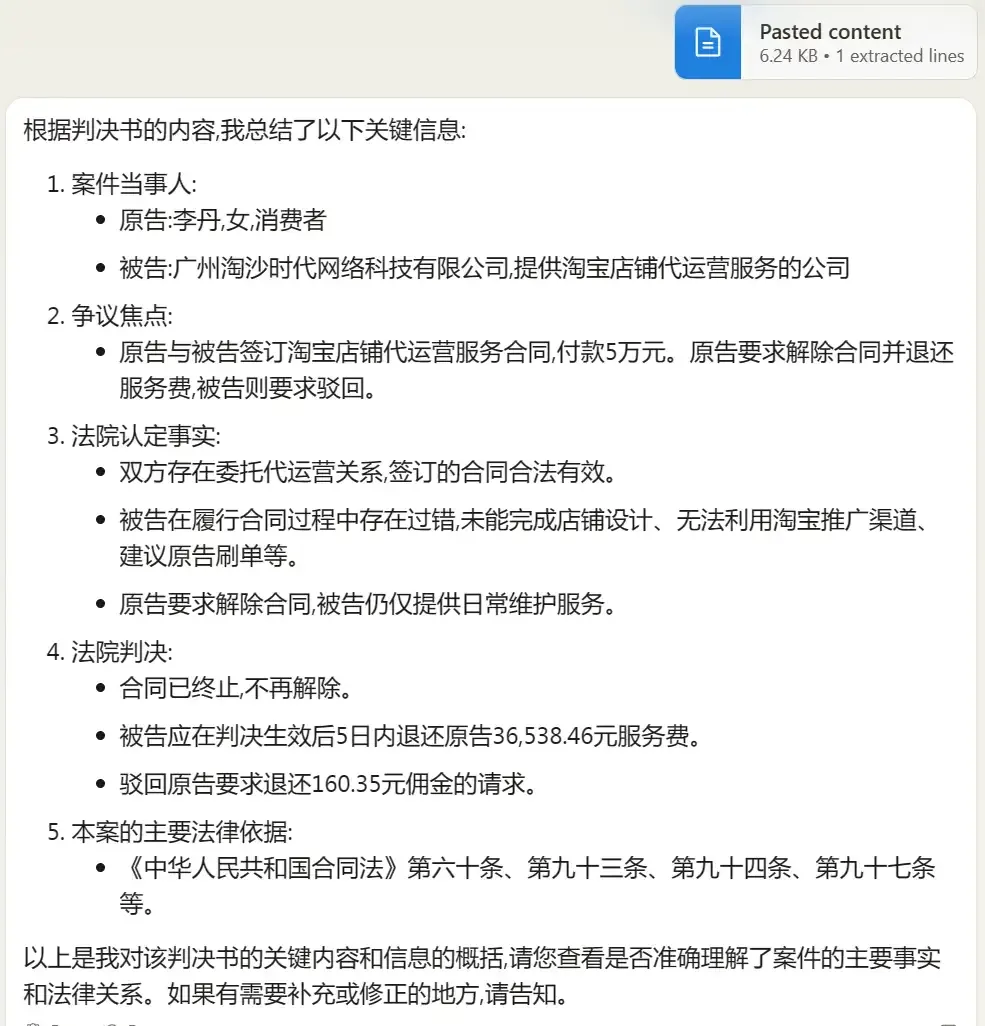
But since we’re in the AI era now, just feeding it directly to AI for reading seems acceptable.

IV. Other Things to Note
1. Saving to a database does not save hard drive space
Although the dataset compressed package totals under 100GB,
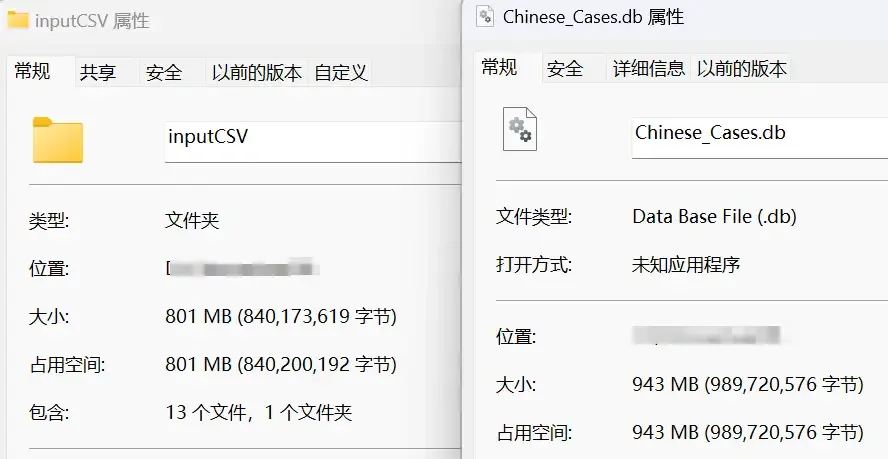
After decompression, the total capacity of all CSV files approaches 400GB.
Importing into a database does not compress the files. In fact, due to index files, the capacity may increase slightly. For example, an 800MB CSV, after import, reached 943MB.
In my opinion, whether using the CSV approach or the database approach, both are more suitable for use by an entire legal department, legal team, or law firm.
Individual storage and use may be too costly.
After saving the database file to an intranet, Antares SQL can still open it. A key feature of databases is that they allow multiple people to connect simultaneously, avoiding the problem of Excel not being able to open the same file.
2. After generation, be careful not to click generate repeatedly
Due to time, cost, and habit considerations, I did not add data duplication validation in my software. If you click generate again, new data will be directly appended to the database.
Similarly, after successful import, it’s recommended to move the files out of the input folder (if using a custom folder, consider moving them away) to avoid accidental reimport.
Although deduplication can be done through code, it’s still quite troublesome.
3. Limited ability, there may be bugs
Since I am not a programming professional, all the code was self-taught out of interest, so there may be bugs—please forgive me.
All code is based on Python native libraries and the Pandas library, containing no viruses or harmful code.
If antivirus software flags it, it’s definitely a false positive.
V. Software Download Links
Although I don’t think many readers will actually build their own database (many may have only saved the dataset to Baidu Cloud without downloading it locally), just in case:
Therefore, I have open-sourced this small script, and the relevant code can be obtained through the following link:
https://github.com/ByronLeeeee/CreateChineseCasesDB
Packed software (usually can be downloaded by copying to Xunlei):
https://github.com/ByronLeeeee/CreateChineseCasesDB/releases/download/main/CCCDB.exe
If you cannot connect to GitHub due to network issues, please contact me.
Antares SQL official website:
However, there may be network connectivity issues. You can download through Xunlei or similar tools using the following links:
Windows installer:
https://github.com/antares-sql/antares/releases/download/v0.7.20/Antares-0.7.20-win_x64.exe
Windows portable:
https://github.com/antares-sql/antares/releases/download/v0.7.20/Antares-0.7.20-portable.exe
Mac version:
https://github.com/antares-sql/antares/releases/download/v0.7.20/Antares-0.7.20-mac_x64.dmg
VI. Other
I originally made this software for my own use, but finding that the decompressed files reached as much as 400GB was quite painful. I’m sure this will discourage most people from creating a local database.
However, the rumors about “China Judgments Online shutting down” are indeed widespread. Keeping a copy of the data locally can still be helpful for most legal professionals’ work.
At the very least, some users who are unwilling to pay can stop being forced to tolerate paid case database limitations.
If you find this software helpful, feel free to share it with your legal professional friends.
If you’re at a company, just forward it to IT and have them set it up—it’s not that much trouble.